Crop Image Online
Crop, rotate, and zoom your images easily. Fast, free, and 100% secure. All processing happens in your browser for maximum privacy.
Select a file
or drag and drop
PNG, JPG, WEBP up to 49MB
Preview
Controls
Aspect Ratio
How to Crop Images
Crop your photos in 3 simple steps.
1. Upload Image
Upload your image file (JPG, PNG, WebP).
2. Select Area
Drag the corners to select the area you want to keep.
3. Crop & Download
Apply the crop and download your new image.
Why Use Our Image Cropper?
Instant Cropping
Crop images instantly in your browser without uploading.
100% Secure
Your photos never leave your device. Privacy guaranteed.
Precise Control
Use preset aspect ratios or free crop for perfect composition.
All Formats
Supports JPG, PNG, WebP, and many more.
Free Forever
No limits, no watermarks, no hidden fees.
Mobile Friendly
Works perfectly on phones, tablets, and desktops.
Mastering Image Cropping
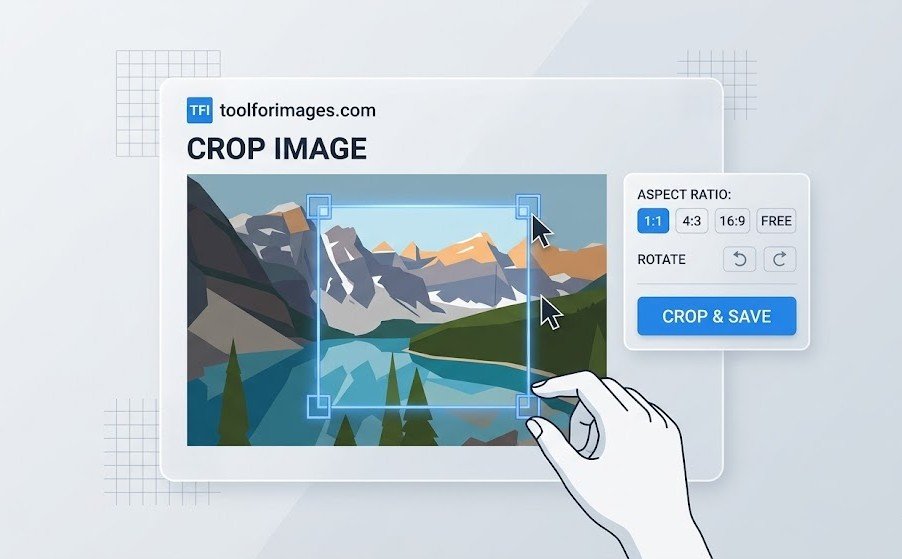
What is Image Cropping?
Image cropping is the process of removing unwanted outer areas from a photographic or graphic image. This process usually consists of the removal of some of the peripheral areas of an image to remove extraneous trash from the picture, to improve its framing, to change the aspect ratio, or to accentuate or isolate the subject matter from its background. Depending on your needs, you can simply trim the edges or completely change the narrative of the photo by focusing on a specific element. Whether you are dealing with a JPEG, PNG, or WebP file, our online image cropper handles the format seamlessly, ensuring the resulting image is perfectly suited for your requirements.
Why Crop Your Images?
Cropping is one of the most fundamental and powerful photo editing techniques available to both amateur and professional photographers. It's not just about making an image smaller; it's an essential part of image optimization for SEO and web performance. Here are some of the primary reasons you should consider cropping your photos:
- Improve Composition: Remove distractions and focus on the main subject. A tight crop can turn a decent photo into a striking one by eliminating background clutter.
- Change Aspect Ratio: Adapt images for specific platforms. Instagram often requires 1:1 or 4:5 ratios, YouTube thumbnails are 16:9, and Pinterest prefers 2:3. Cropping ensures your image fits perfectly everywhere without unwanted stretching or distortion.
- Focus on Details: Zoom in on a specific part of a larger image. If you have a high-resolution photo, cropping allows you to isolate a tiny detail, essentially acting as a digital zoom without losing quality if the starting resolution is high enough.
- Create Better Thumbnails: For blogs or e-commerce sites, a well-cropped thumbnail can drastically improve click-through rates.
Tips for Better Cropping
Use the "Rule of Thirds" to create balanced and interesting compositions. Place your subject along the grid lines or at their intersections rather than perfectly in the center. Also, be mindful of the resolution; cropping too much can result in a low-quality image if you enlarge it later. Always consider the final destination of the image when determining your crop parameters. Our tool provides a dynamic selection box that helps you visualize exactly what your final image will look like before you commit to the crop.
Frequently Asked Questions
Common questions about our image cropper.
What formats are supported?
We support cropping for all major image formats including JPG, PNG, and WebP.
Is it safe to use?
Yes! All cropping happens locally in your browser. Your images are never uploaded to any server.
Does cropping reduce quality?
Cropping removes pixels, so the image size decreases. However, the quality of the remaining pixels stays the same. Our tool ensures maximum quality retention.
Is it free?
Yes, our image cropper is 100% free to use. Crop as many images as you like.
Discover More
Find the perfect tool for your specific needs